How to add robots.txt, llms.txt and schema to a Squarespace site
On Squarespace you can’t edit robots.txt. You get one checkbox, Block known artificial intelligence crawlers, under Settings > Crawlers, and it’s off by default. On version 7.1 you add llms.txt by pasting text under SEO/AI Visibility > SEO Settings > LLMS.txt. Extra JSON-LD schema goes in code injection, which needs a Core, Plus or Advanced plan (or some legacy plans).

- One shared robots.txt: Squarespace says all its sites use the same robots.txt file and users can’t access or edit it.
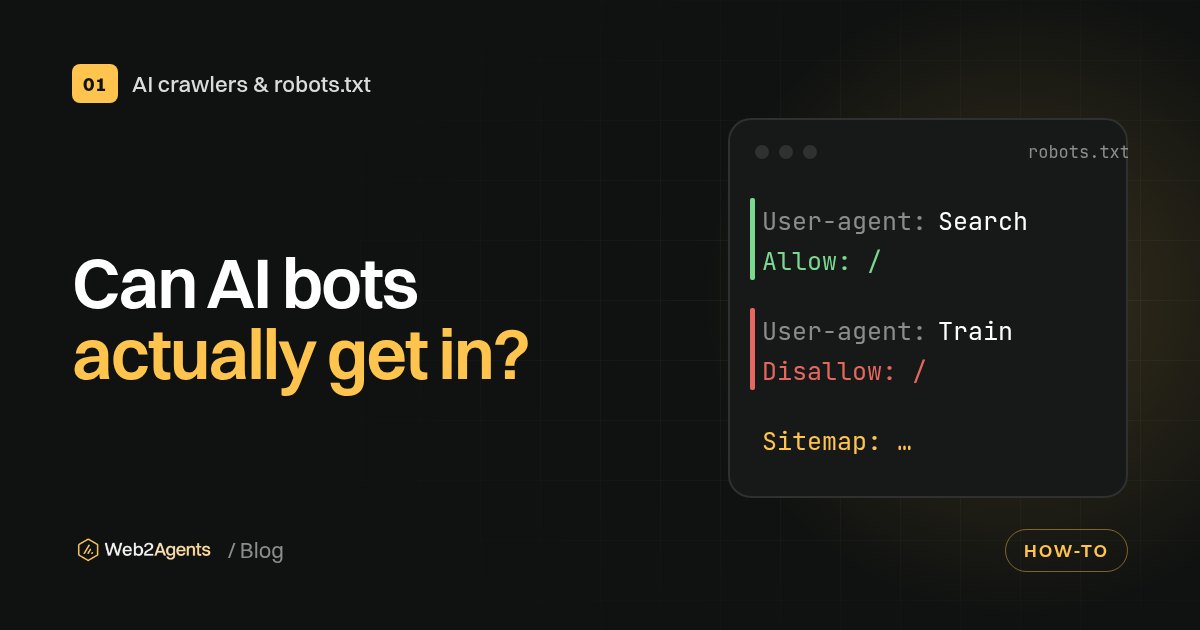
- The AI checkbox is all or nothing: ticking it adds a fixed list of 26 AI bots to your robots.txt for the whole site. Squarespace says you can’t ask AI crawlers to skip only specific pages.
- AI search bots aren’t on that list: OpenAI’s
OAI-SearchBotandChatGPT-UserandPerplexityBotaren’t named, butGPTBot,ClaudeBot,Google-ExtendedandDuckAssistBotare. - llms.txt is off by default and 7.1 only: the file goes live at
/llms.txtonce you paste text and save. Squarespace doesn’t write it for you. - Code injection isn’t on every plan: Squarespace lists Core, Plus, Advanced and some legacy plans, and checkout pages don’t accept custom code.
- There’s a built-in AI Visibility tool: on 7.1 sites (English only) it runs prompts in ChatGPT or Gemini and shows whether your site is mentioned, using AI credits from your plan.
Before you start
You need three things:
- Admin access to the site, so you can open Settings, the SEO/AI Visibility panel and Code Injection.
- Your site version. llms.txt and the AI Visibility tool are for version 7.1 sites. Squarespace’s help center lets you check which version you’re on.
- A decision about AI bots. Squarespace gives you one switch, not a file, so decide first whether you want to be in AI answers or out of AI training. If you also need the files themselves, the free Web2Agents .txt generator writes a robots.txt and llms.txt; on Squarespace you’ll use only the llms.txt part.
Step 1: Decide on the AI crawler checkbox
Where it is
Open the Settings panel, click Crawlers, and find Block known artificial intelligence crawlers. Squarespace leaves it unchecked by default because, in its words, it doesn’t want to “potentially impact your site’s traffic by excluding it from chat answers and sources”.
The Crawlers page has a separate option for search engines. That one hides your site from search results, so leave it alone unless that’s really what you want.
What ticking it blocks
According to Squarespace’s help article on AI crawlers, the checkbox asks these bots not to crawl your site, among others: GPTBot, ClaudeBot, anthropic-ai, Google-Extended, Applebot-Extended, CCBot, Meta-ExternalAgent, Amazonbot, Bytespider, GoogleOther, DuckAssistBot, cohere-ai and YouBot. The full list has 26 names and Squarespace says it may add more.
It doesn’t touch the bots that fetch pages for AI search answers from OpenAI and Perplexity, because OAI-SearchBot, ChatGPT-User and PerplexityBot aren’t on the list. OpenAI’s crawler overview explains that GPTBot is for training and OAI-SearchBot is for search, and that each one has its own robots.txt setting.
So the checkbox mostly blocks training crawlers. But it isn’t a clean “training only” switch: it also blocks DuckAssistBot, which DuckDuckGo uses for its AI answers, and Amazonbot. Squarespace itself says there’s no universal way to opt out of training while still appearing in the same company’s chatbot answers, and that blocking may reduce your traffic. It also doesn’t remove anything already collected.
Which way to go
| Your goal | Checkbox | What you give up |
|---|---|---|
| Be found and cited by as many AI tools as possible | Leave it unchecked | Your public pages stay open to AI training crawlers |
| Opt out of most AI training | Tick it | Some AI answer sources, such as DuckDuckGo’s assistant |
| Block only some pages from AI | Not possible on Squarespace | Make those pages private or password-protected instead |
| Allow one AI company but block another | Not possible with the checkbox | You can’t edit robots.txt line by line |
If you want the reasoning behind each bot, our guide on allowing AI search bots but blocking AI training goes through them one by one. On Squarespace you can’t write those rules yourself, but the same logic tells you whether the checkbox fits.
Step 2: Add llms.txt (version 7.1)
Turn it on
From Squarespace’s llms.txt guide:
- Open the SEO/AI Visibility panel.
- Click SEO Settings, then the LLMS.txt tab.
- Paste your llms.txt text into the field. The file stays off until you add text.
- Click Save. It’s served at
https://yourdomain.com/llms.txt.
To turn it off later, go back to the same tab, click Delete, then Save. Version 7.0 sites don’t have this setting.
What to paste
Squarespace says it can’t give advice on the text, because llms.txt is a proposed standard still in development. The llmstxt.org proposal describes a Markdown file with your site name as a heading, a one-line summary in a quote block, and sections of links with one line each. A short example for a small business:
# Example Studio

> Example Studio is a Lisbon photography studio for weddings and portraits.

## Main pages
- [Services and prices](https://example.com/services): packages, prices and what's included
- [Book a session](https://example.com/book): availability and booking
- [About](https://example.com/about): who we are and where we work

## Optional
- [Blog](https://example.com/blog): tips and recent shoots
Keep it to the pages that answer real questions: what you sell, prices, how to buy or book, and where you are. Leave out the privacy policy, thank-you pages and tag archives.
Keep expectations realistic
Google’s AI optimization guide says you can ignore AI text files like llms.txt for Google Search. An Ahrefs study of 137,210 domains found that 97% of published llms.txt files got zero requests in May 2026. On Squarespace it takes five minutes and costs nothing, so it’s fine to add, but your page content and the crawler checkbox matter more. More in our explainer what is llms.txt.
Step 3: Add schema with code injection
Check what’s already there
Before you add anything, open a live page, view its source and search for application/ld+json. That shows any structured data already on the page, so you don’t add a second block that describes your business differently.
Where to paste JSON-LD
Squarespace’s code injection guide gives you two places:
| Scope | Where | Good for |
|---|---|---|
| Whole site | Code Injection panel, Header field | Organization or LocalBusiness with your name, address, phone and opening hours |
| One page | Pages panel, hover the page, click the gear icon, Advanced, Page Header Code Injection | FAQPage on an FAQ page, Service on a service page |
Wrap the JSON-LD in <script type="application/ld+json"> and </script> tags and click Save. Page Header Code Injection goes into that page’s <head>. Squarespace notes three limits: code injection needs a Core, Plus or Advanced plan (or some legacy plans), checkout pages don’t accept custom code, and its support team can’t help with custom code.
Keep it honest
Every value in your markup should match what a visitor sees on the page. Google’s guidelines expect that, and an AI assistant that finds different opening hours in your schema and your page has a reason to trust neither. Google also says structured data isn’t required for its AI features and there’s no special AI schema to add (AI optimization guide). Think of schema as accurate labelling, not a ranking trick.
Step 4: Check everything on the live site
- robots.txt: open
https://yourdomain.com/robots.txt. If you ticked the AI checkbox, the listed bots such asGPTBotandClaudeBotshould now appear in the file. If you didn’t, they shouldn’t. - llms.txt: open
https://yourdomain.com/llms.txtin a private window and check it shows your text. - Schema: paste a page URL into the Schema Markup Validator to catch errors, and into Google’s Rich Results Test to see which rich results it qualifies for.
- AI mentions: on 7.1, open SEO/AI Visibility, then AI Visibility, and run a few branded and non-branded prompts. Squarespace’s AI search guide says the tool shows whether ChatGPT or Gemini mention your site, and each run uses AI credits from your plan.
- Outside check: run the free Web2Agents AI check to see how AI bots are treated by your robots.txt and how your homepage scores.
Squarespace vs other builders
| Squarespace | Wix | Webflow | WordPress | |
|---|---|---|---|---|
| Edit robots.txt | No, one AI checkbox | Yes, Robots.txt Editor | Yes, in Site settings > SEO | Yes, with an SEO plugin or a file |
| llms.txt | Paste text (7.1 only) | Generated for you on premium plans | Upload a file in Site settings | Yoast or Rank Math can create it |
| Custom JSON-LD | Code injection on Core and up | Structured Data Markup per page | Head code or the Schema markup field | Added by SEO plugins, or custom code |
The details are in our guides for Wix, Webflow and WordPress.
Common Squarespace mistakes
| Mistake | What happens | Fix |
|---|---|---|
| Ticking the AI box to “protect” content without reading the list | You also block DuckDuckGo’s AI answers and Amazonbot | Decide on purpose, using the table in Step 1 |
| Ticking the search engine option by mistake | Your site drops out of search results | Untick it; the AI option is separate |
| Waiting for Squarespace to generate llms.txt | Nothing appears at /llms.txt | Paste your own text in the LLMS.txt tab |
| Pasting schema on a plan without code injection | The panel isn’t there | Upgrade, or skip custom schema for now |
| A second business block in the header | Two descriptions that may disagree | Check the page source first and keep one |
| Using a word processor for JSON-LD | Curly quotes break the code | Use a plain text editor and straight quotes |
FAQ
Can I edit robots.txt on Squarespace?
No. Squarespace says all its sites share the same robots.txt and users can’t access or edit it. You only get the crawler checkboxes under Settings > Crawlers.
Does blocking AI crawlers on Squarespace stop ChatGPT search?
Not directly. The checkbox blocks GPTBot, OpenAI’s training crawler, but OAI-SearchBot and ChatGPT-User, which fetch pages for ChatGPT search, aren’t on Squarespace’s list.
How do I add llms.txt to Squarespace?
On a version 7.1 site, open the SEO/AI Visibility panel, click SEO Settings, then the LLMS.txt tab, paste your text and click Save. The file appears at yourdomain.com/llms.txt. Version 7.0 sites don’t have the option.
Can I block AI from only some pages on Squarespace?
No. Squarespace says it isn’t possible to ask AI crawlers to skip only specific pages. The checkbox covers the whole site; to keep a page away from all crawlers, make it private.
How do I add schema markup to Squarespace?
Paste JSON-LD inside a script tag in the Code Injection panel’s Header field for the whole site, or in Page Header Code Injection under a page’s Advanced settings. Code injection is available on Core, Plus, Advanced and some legacy plans.
Sources
- Understanding Google SEO emails and console errors, Squarespace Help Center (robots.txt can’t be edited)
- Request that AI models exclude your site, Squarespace Help Center, last updated 8 January 2026
- Create an llms.txt file, Squarespace Help Center, last updated 22 July 2026
- Customize parts of your site with code injection, Squarespace Help Center
- Optimize your site for AI-powered search engines, Squarespace Help Center, last updated 1 October 2026
- Overview of OpenAI crawlers, OpenAI
- AI optimization guide, Google Search Central
- The /llms.txt file, llmstxt.org
- We analyzed 137K sites: 97% of llms.txt files never get read, Ahrefs